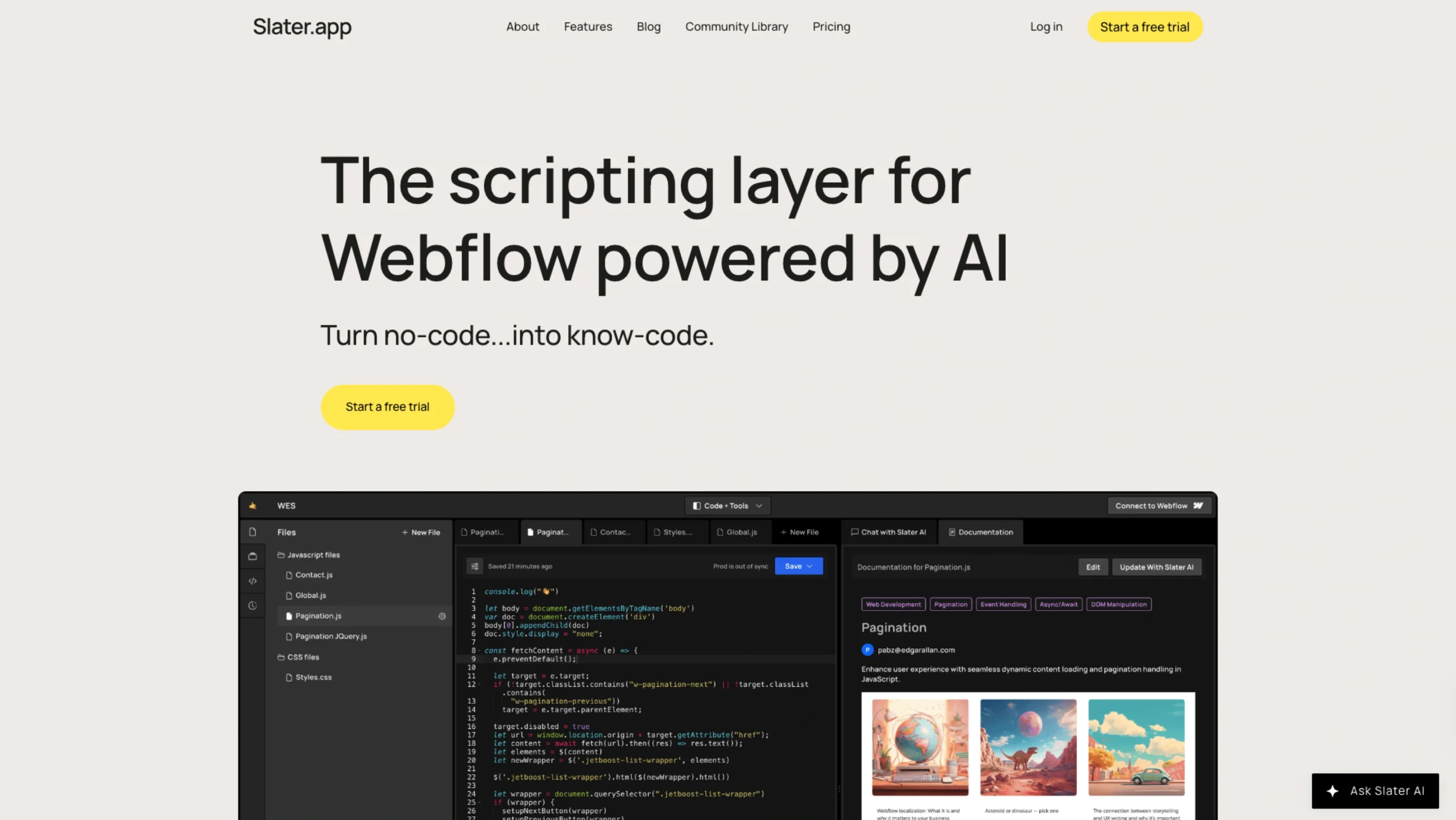
Slater is an AI-powered custom code environment explicitly built for Webflow developers.
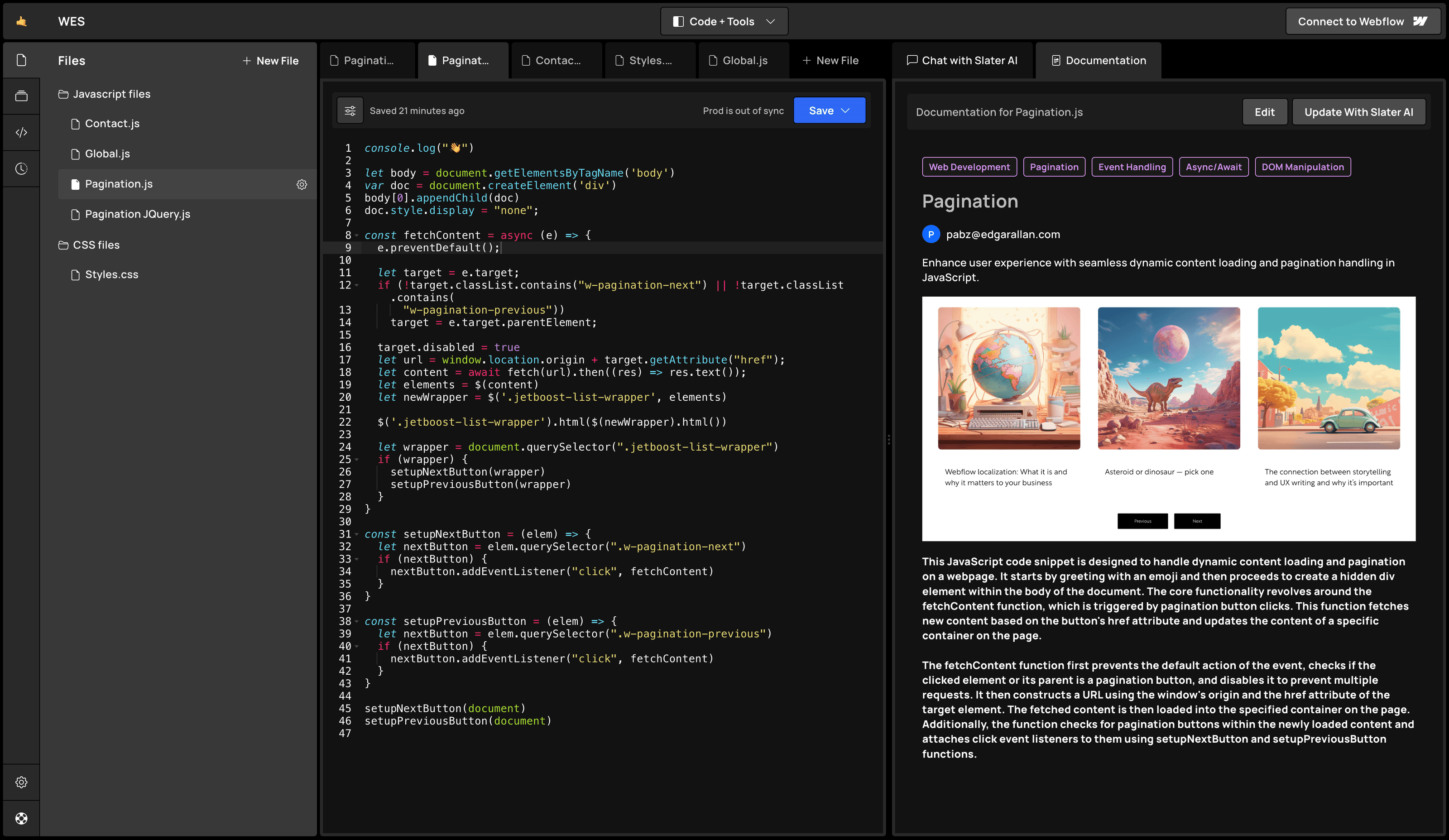
If you build sites in Webflow and constantly bump into its “custom code” limitations, Slater is basically the sidekick you’ve been wishing for.
It’s a modern coding environment explicitly built for Webflow projects, with AI baked right in.
Instead of wrestling with random snippets or bouncing between tools, you write a prompt, get usable code, and plug it straight into your Webflow site—without character limits or copy-paste chaos.
What is Slater?
Slater is a browser-based coding environment that connects directly to your Webflow projects. Think of it as a dedicated scripting layer for Webflow, powered by AI.
You can:
- Write and edit JavaScript and CSS in a proper editor
- Generate custom code with AI (no character limits)
- Test and tweak scripts without constantly publishing your site
- Collaborate with teammates on the same project
The whole idea is simple: turn no-code into know-code, so you can push Webflow further without feeling like you need to become a full-time developer.
Why Slater exists (and why people love it)
The team behind Slater loves Webflow—but not the experience of adding custom code inside it.
The built-in code areas can feel cramped, clunky, and disconnected from a proper dev workflow. So they built Slater as a focused, AI-powered code editor that sits alongside Webflow and speaks its language.
A lot of Webflow pros have already jumped on board:
- People who used to rely on tools like GitHub Copilot now use Slater for most of their custom code because it’s faster and more tailored to Webflow.
- Designers who “masquerade” as developers say Slater makes JavaScript feel far less intimidating.
- Creators are building GSAP animations in under 10 minutes, without leaving their Webflow tab.
- Teams like Memberstack and other Webflow-heavy businesses openly say they love using it.
The recurring theme in the testimonials: speed, comfort, and not having to republish Webflow to check whether your JavaScript works.
Let AI do the heavy lifting.
Slater’s built-in AI is the star of the show.
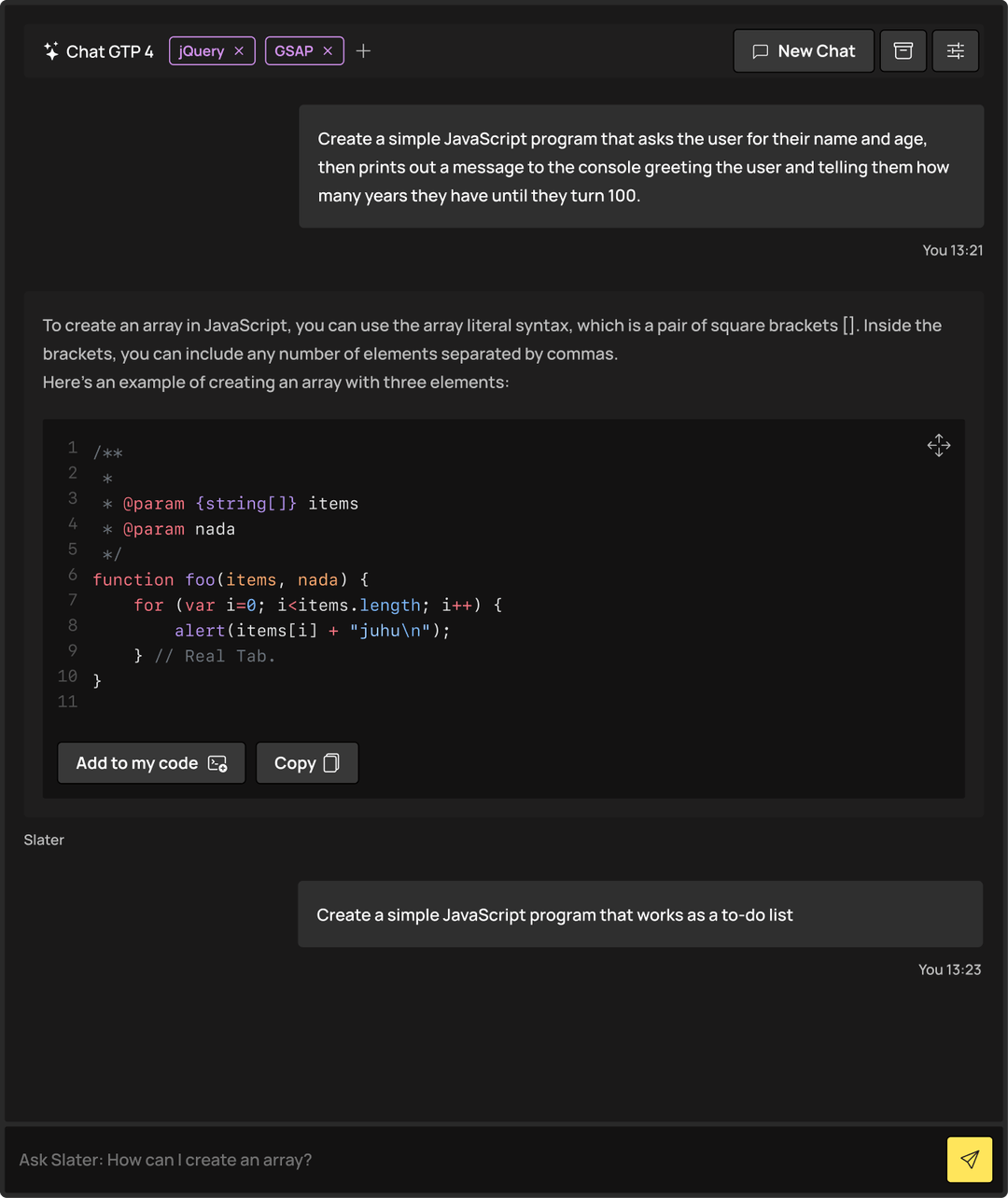
Instead of staring at a blank editor, thinking, “Okay… how do I write this from scratch?”, you can:
- Describe what you want (e.g., “Create a GSAP scroll animation for this section” or “Build a sticky header that appears on scroll”).
- Hit enter.
- Let the AI generate the initial code for you.
You can then refine, ask follow-up questions, or have the AI explain what the code does—perfect if you’re still learning JavaScript.
Because Slater is wired to Webflow-specific use cases, the code you get is usually much closer to what you actually need, and tiny prompt boxes or character limits do not constrain you.
Built for teams and solo creators
Whether you’re a solo Webflow designer or part of an agency, Slater is designed for real workflows:
- Collaborate on the same project
Multiple people can work on the same codebase at once, making it easier to split responsibilities and move faster on complex builds. - Write code for multiple pages in one place.
You don’t have to dig through different page settings and script boxes. You can keep your logic organized in one editor and structure files the way you want. - Save to dev or production.
You can keep “in-progress” code separate from live code, so you can experiment without breaking things for your users.
All of this removes a lot of the friction that usually comes with “custom code” in a no-code environment.
Features that smooth out the rough edges
Beyond AI and collaboration, Slater packs in a bunch of quality-of-life features for Webflow builders:
- Modern code editor – Syntax highlighting, better formatting, and a proper scripting experience.
- Code explainers – If you don’t fully understand what a snippet does, you can have it broken down for you.
- Tighter Webflow integration – Slater works with your projects instead of sitting completely separate, making it feel like a natural extension of your build process.
In short, it’s made by Webflow professionals for Webflow professionals (and ambitious beginners).
Learn as you go: Resources & tutorials.
Slater doesn’t just give you tools and send you off. There’s also a growing library of resources to help you get better with code:
- Javascript 101 articles – covering things like CSS & JS, localStorage, and working with the OpenAI API.
- How-to guides – like Slater & CSS or project access controls.
If you’re a Webflow designer with “none-to-medium” JavaScript skills, these resources are a great way to level up while using Slater on real projects.
Instead of just writing code… It’s time to prompt
Slater reflects a shift that’s happening across the web:
We’re moving from manually writing everything line-by-line to prompting, refining, and collaborating with AI.
You still stay in control. You still review and adjust the code.
But you don’t have to start from zero every time.
If you:
- Build most of your sites in Webflow
- Want interactions, animations, or logic beyond what Webflow gives you out of the box
- And don’t want to spend years becoming a full-stack developer
…Slater is a very natural next step.
You can try it for free, play with the AI, connect it to a Webflow project, and see how much faster your “custom code” wishlist becomes reality.
When you’re ready to push Webflow beyond its native limits, Slater is the coding layer that makes it feel easy.