In the world of UI/UX, typography is more than just a choice of letters—it is the voice of the interface.
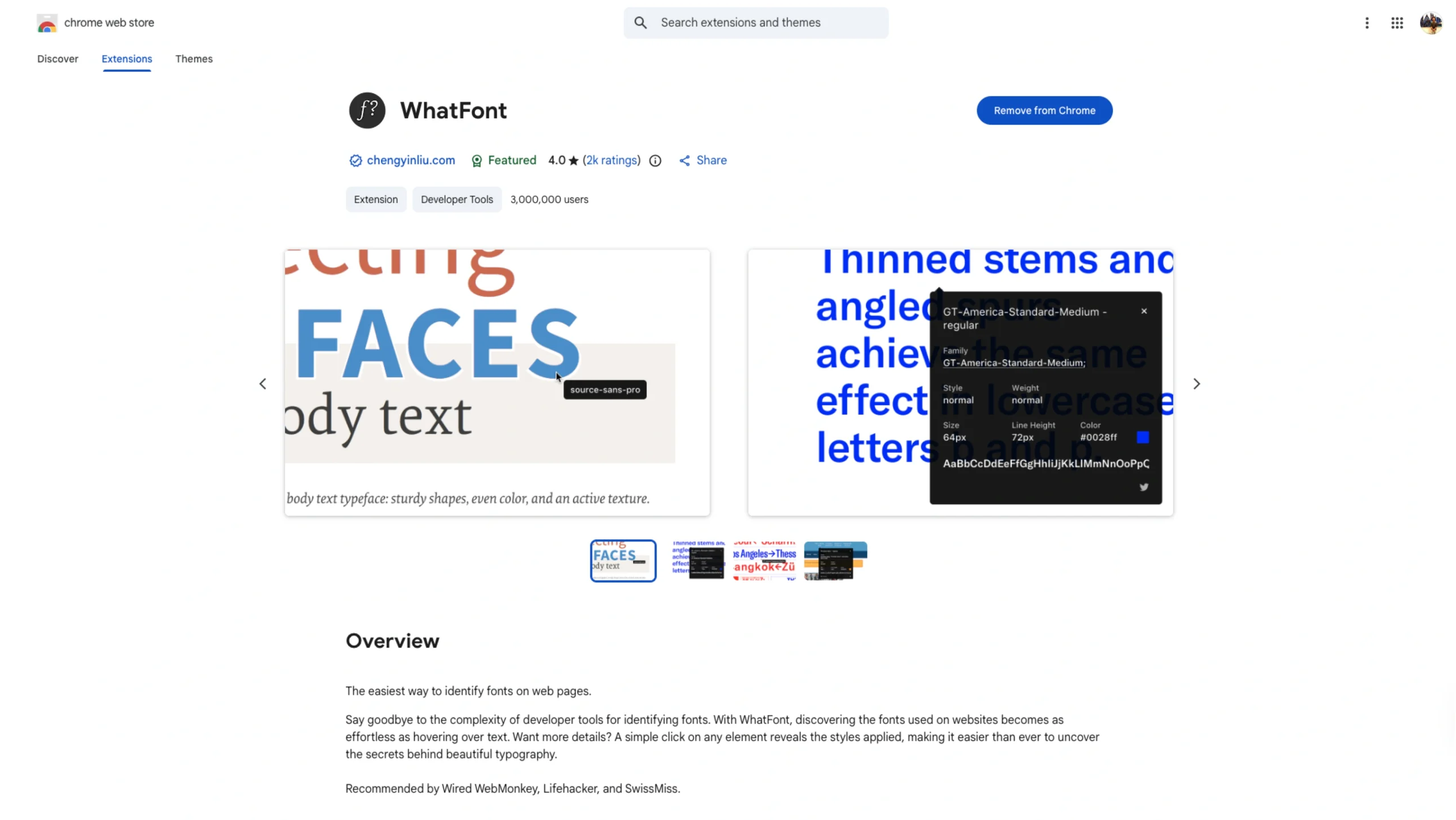
WhatFont is a lightweight, elegant browser extension that allows designers and developers to identify web fonts instantly, without the friction of digging through a browser’s “Inspect Element” console.
Created by developer Chengyin Liu, WhatFont has grown into one of the most popular design utilities in the Chrome Web Store, trusted by millions of professionals to deconstruct beautiful web typography.
Key Features for UI/UX Professionals
- One-Click Identification: Once activated, simply hover your cursor over any text to reveal the font name. It’s the fastest way to “eye-drop” typography as you browse for inspiration.
- Deep Specimen Data: Clicking on a specific text element expands a detailed panel. It provides the exact CSS properties currently in use:
- Font Family (including the specific weight and style)
- Font Size and Line Height
- Hex Color Code
- Service Detection: WhatFont goes beyond just naming the font; it identifies the font delivery service being used, such as Google Fonts, Adobe Fonts (Typekit), or self-hosted files. This is invaluable for designers who want to source the exact same license for their own projects.
- Rendered vs. Specified: Unlike basic CSS inspectors that show you a “font stack” (e.g., Helvetica, Arial, sans-serif), WhatFont tells you which font is actually being rendered on your screen. This helps troubleshoot fallback fonts and cross-platform display issues.
Why It’s a UI/UX “Must-Have”
- Competitive Research: When you see a landing page with a high conversion rate or a stunning aesthetic, WhatFont lets you immediately understand the typographic hierarchy (the “Golden Ratio” of their font sizes and line heights) that makes the design work.
- Developer Handoff Validation: QA leads and UX designers use WhatFont to verify that a live build matches the original Figma or Adobe XD specifications. It’s the quickest way to spot if a font-weight didn’t load correctly or if a line-height is off by a few pixels.
- Minimalist UI: True to the “UI/UX” spirit, the tool stays out of the way. It doesn’t clutter the browser; it only appears when called and can be dismissed with a single click or the
ESCkey.