Chroma is an online color palette platform that helps designers discover, create, and share beautiful color combinations for digital products and branding.
It offers curated palettes, gradient inspiration, and tools for exploring harmonious color relationships, making it easy to find the right colors for UI design, illustrations, and creative projects.
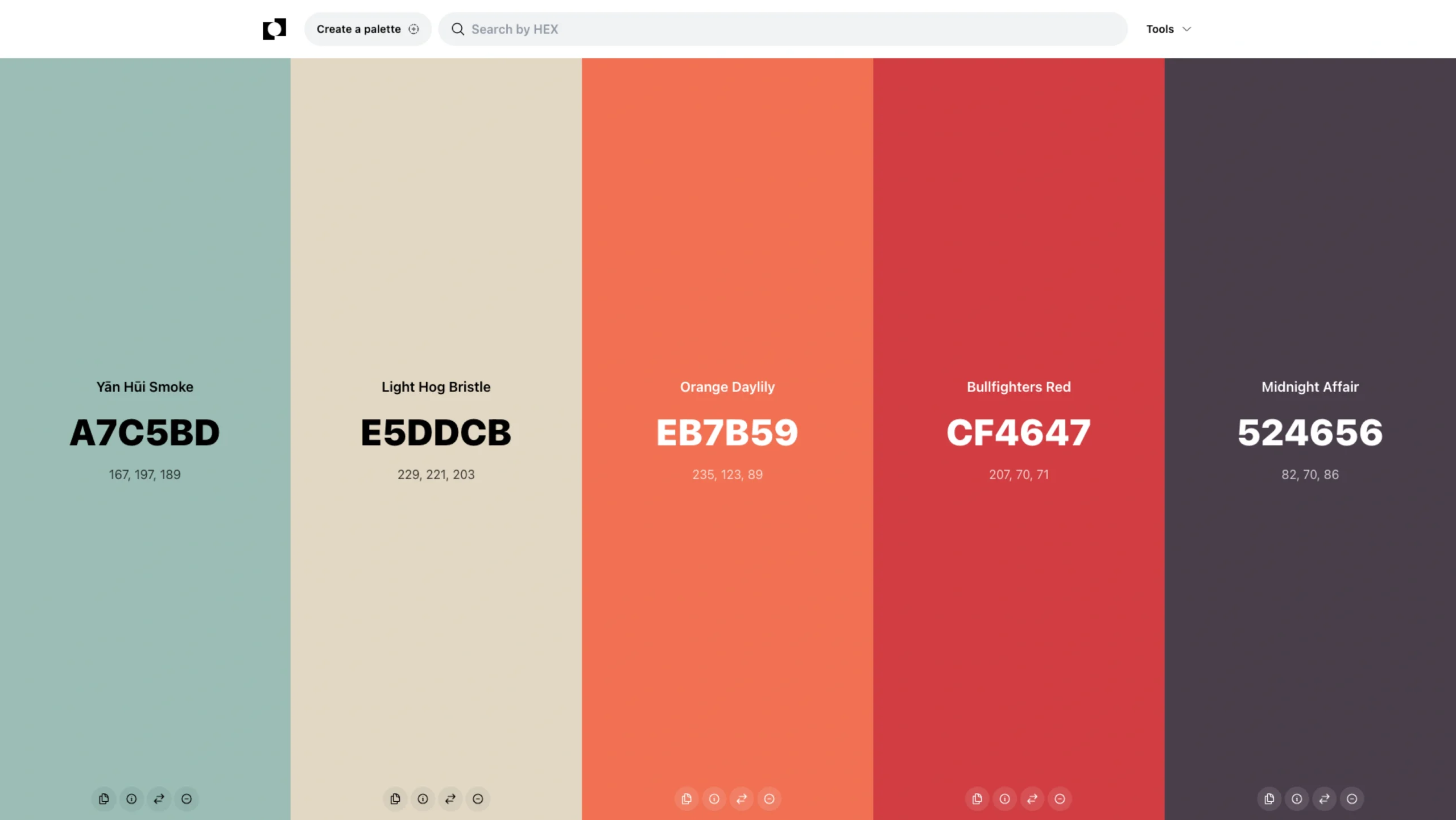
The shared URL links directly to a specific five-color palette that can be reused or customized for design workflows.

Chroma (Now Colorway): A Fast Browser Color Toolkit for Designers
You know that moment when you’re browsing a website and suddenly notice the perfect shade of blue?
Or you’re looking at a landing page and want to know exactly which colors make the interface feel so polished.
Normally, you’d need to take a screenshot, open Figma or Photoshop, find an eyedropper, sample the color, copy the HEX value, and then perhaps create a palette around it.
Chroma was built to make that whole process much quicker.
Today, the tool has been renamed Colorway, but the idea remains the same: bring useful color utilities directly into your browser so you can explore, capture, and work with colors while you browse. The original chroma.dev website now identifies the product as Colorway.
What is Chroma?
Chroma is a browser-based color toolkit designed around a simple workflow: see a color → sample it → build around it → use it in your design.
Its core tools include an eyedropper, color picker, palette builder, color history, tints and shades, and palette sharing. The browser extension also provides HEX, RGB, and HSL values and lets you copy colors directly to your clipboard.
The interesting part isn’t necessarily that any one of these features is revolutionary.
It’s the fact that they live inside the browser.
For designers, that removes a lot of friction from one of the most common research activities: looking at other websites and collecting visual references.
The Real Strength: Sampling Colors From the Web
The standout feature is the eyedropper.
Chroma’s website describes it as being able to sample colors from objects and images on a page, including content outside the current viewport.
In practical terms, the workflow is incredibly simple.
You’re browsing a website.
You see a color you like.
Open the extension, activate the eyedropper, move your cursor over the area you’re interested in, and click.
That’s it.
The HEX value can then be copied automatically, so you don’t have to manually select and copy the value from another interface.
For visual research, those few seconds saved can add up quickly.
It Feels More Like a Design Tool Than a Browser Extension
One of the more interesting things about Chroma is its interaction model.
The team describes the eyedropper experience as “Figma-esque”, essentially bringing the familiar feeling of picking colors in a design application into the browser.
That makes sense.
Designers already understand the mental model:
Pick → inspect → copy → experiment.
You don’t need to learn another complicated interface.
The extension also includes a draggable toolbar, light and dark themes, color history, and quick copy functionality.
Those aren’t flashy features, but they’re the kind of details that make a utility pleasant to use repeatedly.
Build a Palette While You Browse
Picking one color is useful.
Picking several related colors is where things get more interesting.
Chroma lets you create a palette from colors found on a webpage. You can collect colors, organize them, and generate a unique URL for the palette so it can be bookmarked or shared with someone else.
This creates a nice workflow for design inspiration.
Imagine you’re researching SaaS websites for a new product.
You find five sites you like.
Instead of taking screenshots and trying to remember which colors came from where, you can sample interesting colors as you browse and start building your own reference palette.
That palette can then become a starting point for exploration in Figma.
One Palette Can Become Many
Color exploration rarely ends with the first palette.
You might start with a dark navy and discover that you need:
- A lighter background version
- A darker text version
- A muted secondary color
- A hover state
- A complementary accent
- A range of shades
Chroma includes tools for generating tints and shades from a selected color, making it easier to explore variations without manually adjusting every value.
This is particularly useful when you’re developing UI color systems.
Instead of asking, “What should my blue be?”, you’re able to ask a more useful question:
“What does this blue look like across different levels of emphasis?”
That’s a much better way to think about product color.
Gradients Without Leaving the Browser
Gradients have become a standard part of modern web design.
They’re used in hero sections, backgrounds, cards, illustrations, buttons, marketing pages, and increasingly in product interfaces.
Chroma’s toolset includes gradient generation, allowing you to experiment with gradients based on your chosen colors. The current website also highlights gradient palettes as one of its dedicated tools.
This is useful when a flat color feels too static, but you don’t yet know what direction the gradient should take.
You can start with an existing color, explore variations, and see where the combination takes you.
Tints, Shades, and Color Exploration
Another useful part of the toolkit is the ability to work from a single color and generate variations.
This matters more than it might initially seem.
A product rarely needs just one version of a brand color.
For example, a primary blue might need to become:
Primary → Hover → Active → Light background → Border → Disabled → Dark mode
Having quick access to tints and shades can make this early exploration considerably faster.
It doesn’t replace a proper design system, of course. But it can help you get from a single color to a useful family of colors much faster.
Color Values When You Need Them
Chroma supports commonly used color values including:
- HEX
- RGB
- HSL
That makes it useful not only for designers but also for developers who need to translate visual references into code.
A designer might grab a HEX value for Figma.
A developer might need RGB or HSL.
Instead of manually converting values elsewhere, the information is available directly from the extension.
It’s a small thing, but these small conveniences are exactly what make browser utilities valuable.
Color History Is Surprisingly Useful
Here’s another feature that’s easy to overlook: color history.
When you’re researching visual references, you don’t always know which colors you’ll eventually use.
You might sample ten colors and only use three.
Without history, you’d have to go back to the original websites and sample everything again.
With color history, previously selected colors remain available for reference. The extension also supports copying colors to the clipboard.
For a designer doing competitive research or moodboard exploration, this can save a surprising amount of back-and-forth.
Share Palettes With a Link
One feature I particularly like from a collaborative perspective is palette sharing.
Chroma can generate unique URLs for palettes, allowing you to save or share a palette without having to export a file.
That makes a simple workflow possible:
Research → Collect → Build palette → Share
For example, a designer could send a palette to a brand strategist, product manager, or developer before the final design work even begins.
It’s a lightweight way of getting early visual alignment.
Why This Is Useful for UI/UX Designers
Chroma is especially interesting for UI/UX designers because inspiration often starts outside the design tool.
You might discover an interaction pattern on one website, typography on another, and a color system on a third.
The browser is effectively your research canvas.
Chroma turns that canvas into something you can interact with.
During competitor research
Sample colors from competing products and compare their visual language.
During moodboard creation
Collect colors from websites, photography, illustrations, and other visual references.
During visual exploration
Take a single color and generate tints, shades, or related palette options.
During design handoff
Quickly retrieve HEX, RGB, or HSL values for implementation.
During brand exploration
Build palettes from real-world visual references rather than starting with an empty canvas.
This makes Chroma less of a standalone “color picker” and more of a browser-based color research tool.
Useful for Developers Too
Designers aren’t the only people who can benefit from it.
Developers regularly need to inspect colors from existing interfaces, especially when working on redesigns, migrations, or reproducing a visual reference.
Instead of opening DevTools and digging through CSS declarations, a browser eyedropper provides a much faster visual route for discovering a color.
Chroma was explicitly designed with designers, developers, marketing teams, and product people in mind.
And because it doesn’t require a complicated setup or account, it’s easy to introduce into an existing workflow.
No Account, No Complicated Setup
One of the appealing aspects of the original Chroma experience is its simplicity.
The extension listing says it requires no registration or setup, and describes it as a private tool.
The current Edge listing goes further, stating that the extension collects no user data and uses the browser’s built-in EyeDropper API rather than directly accessing pixel data. It also notes that the primary supported browsers are recent versions of Chrome, Edge, and Brave.
For a tool whose main job is simply sampling colors while you browse, that lightweight approach makes sense.
Chroma Is Now Colorway
There’s an important naming update worth mentioning if you’re looking for the tool today.
Chroma is now called Colorway.
The Edge listing explicitly states that Chroma has been renamed Colorway, while retaining its existing functionality and continuing development.
The current chroma.dev website also uses the Colorway name and promotes the browser extensions for Chrome, Edge, and Brave.
So if you search for Chroma and find Colorway instead, you’re in the right place.
The Chrome Web Store listing still carries the familiar Chroma description and history, which explains why both names may appear in search results. As of our research, that listing reports 20,000 users and a 4.6/5 rating from 194 ratings.
Chroma vs. Traditional Color Pickers
There are plenty of color picker websites available.
So why use a browser extension?
The biggest difference is context.
A traditional color picker usually asks you to bring the color to the tool.
Chroma lets you take the tool to the color.
That’s a subtle but important difference.
You’re already looking at the website where the color exists. You don’t need to screenshot it, upload anything, or switch applications.
You simply sample it where you found it.
For visual research, that’s a much more natural workflow.
A Simple Workflow You Can Try
If you’re a designer discovering Chroma for the first time, here’s a workflow worth trying.
Step 1 — Find a reference
Open a website whose visual language you like.
Step 2 — Sample the interesting colors
Use the eyedropper to capture the primary, secondary, background, and accent colors.
Step 3 — Build your palette
Collect those colors into a palette and remove anything that doesn’t feel useful.
Step 4 — Explore variations
Generate tints and shades to see how the palette could work across different UI states.
Step 5 — Share it
Generate a palette URL if you want to send the exploration to a teammate.
Step 6 — Bring it into your design tool
Use the color values as the starting point for your Figma variables, styles, or design tokens.
The important part is that you’re not treating the sampled palette as a copy-and-paste solution.
Use it as research.
That’s a much healthier way to work with visual references.
Who Should Use Chroma?
Chroma is worth trying if you’re:
- UI/UX designers collecting visual references
- Product designers researching competitor interfaces
- Brand designers exploring color directions
- Web designers building websites and landing pages
- Developers inspecting colors during implementation
- Design students learning how color systems work
- Creative teams building moodboards and visual references
- Marketers collecting colors for campaigns and brand inspiration
It’s particularly useful if you spend a lot of time browsing websites for inspiration.
What Makes Chroma Stand Out?
The color-tool space is crowded.
There are sophisticated palette generators, accessibility tools, standalone color pickers, and full design applications.
Chroma doesn’t necessarily try to replace those tools.
Its strength is speed and context.
You’re already browsing.
You already see the colors.
You just need a fast way to capture and explore them.
That’s where Chroma makes sense.
The current product keeps that same philosophy under the Colorway name: browser-first color utilities that let you interact with colors as you browse.
Final Thoughts
Color research is one of those parts of design that can become unnecessarily complicated.
You see something you like, then switch tools, take a screenshot, sample the color, copy the value, create a palette, and eventually bring everything back into your design file.
Chroma cuts out much of that friction.
Its biggest strength isn’t that it gives designers yet another color picker.
It’s that it puts the color picker exactly where inspiration happens: inside the browser.
The combination of an eyedropper, palette builder, color history, tints and shades, color values, gradients, and shareable palettes makes it a useful little addition to a designer’s everyday toolkit.
And if you visit chroma.dev today and see Colorway instead, don’t be confused. It’s the same product under its new name.
If you regularly browse the web for design inspiration, Chroma/Colorway is one of those small tools that can quietly become part of your daily workflow.
Quick verdict
Best for: Browser-based color sampling and palette exploration
Type: Browser extension + online color tools
Browsers: Chrome, Edge, and Brave
Price: Free
Account required: No
Key features: Eyedropper, color picker, palette builder, color history, HEX/RGB/HSL values, tints, shades, gradients, palette sharing
Current name: Colorway (formerly Chroma)