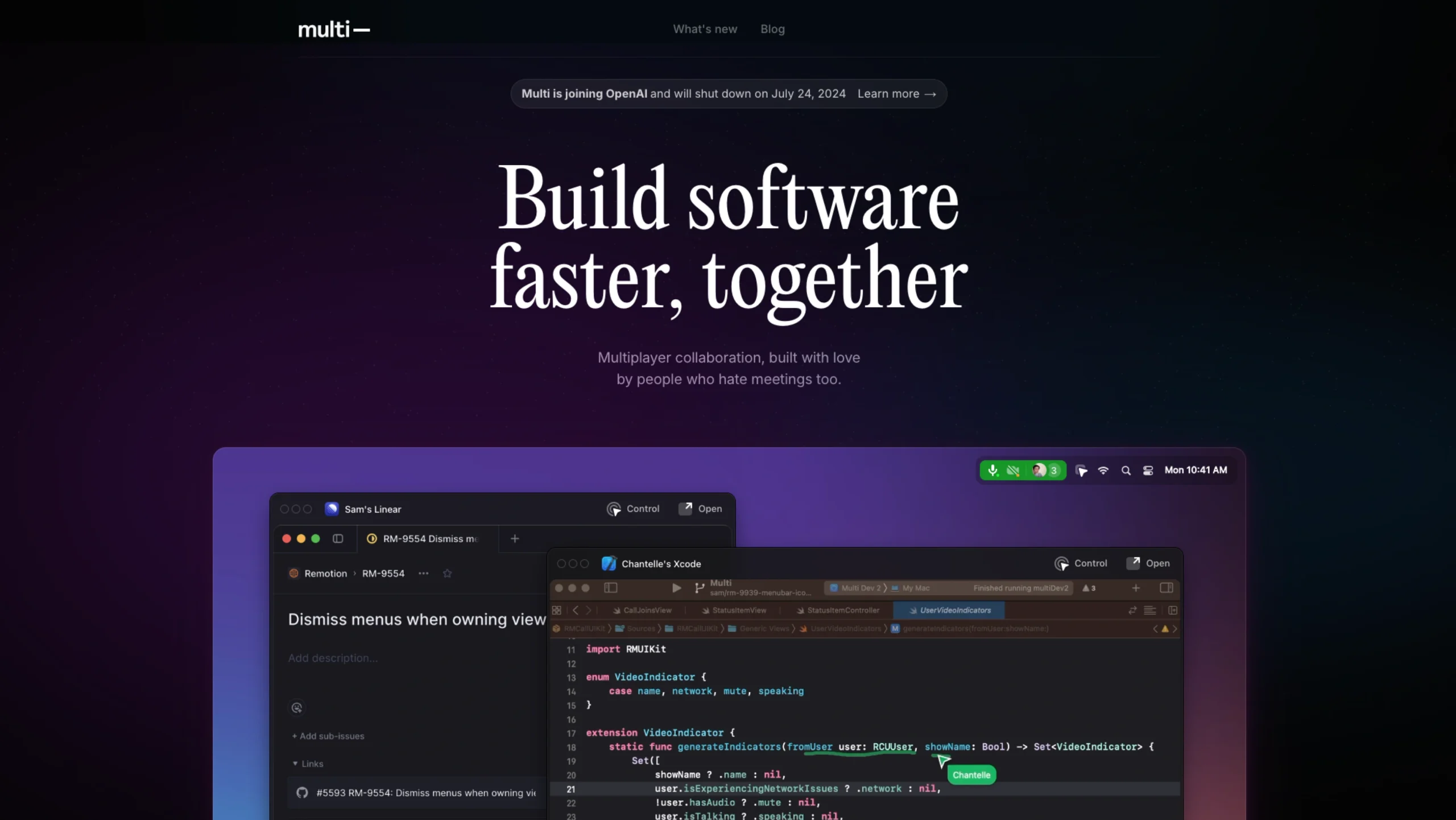
Multi (formerly known as Remotion) is a collaborative “multi-player” desktop layer designed specifically for macOS. Unlike traditional screen-sharing tools (like Zoom or Google Meet), which are passive, Multi transforms your teammates’ cursors into active participants on your screen. It is built to make remote pair programming and collaborative design feel as fast and fluid as sitting next to someone.
Core Features & Functionality
1. Shared Control (Multi-Cursor)
The defining feature of Multi is that it allows everyone on a call to have their own cursor. If you are sharing your screen, your teammates can click, scroll, and type directly into your apps (like VS Code, Figma, or a Terminal) as if they were using their own computer.
2. App-Specific Sharing
Instead of sharing your entire desktop, Multi allows you to share specific apps. This maintains privacy while allowing deep collaboration. Interestingly, it handles window management intelligently, ensuring that the collaborative “layer” stays synced even if you move windows around.
3. Deep System Integration (macOS)
Multi is built natively for macOS, which allows it to offer features that web-based tools cannot:
- Shared Shortcuts: It syncs system shortcuts so that when a teammate “takes the wheel,” their familiar keybindings work.
- Low Latency: Because it’s a native app, the lag between a teammate moving their mouse and the action happening on your screen is significantly lower than browser-based tools.
4. Virtual “Co-working” Lounges
The app provides a lightweight way to see who is available. It uses “Rooms” where you can hop in and out for quick ad-hoc syncs, reducing the friction of scheduling formal calendar invites.
UI/UX Highlights (Why it’s a “Showcase” App)
For a website like uiuxshowcase.com, Multi is a goldmine of modern design patterns:
- The “Glassmorphism” Aesthetic: Multi leans heavily into the modern macOS design language, using high-quality blur effects, rounded corners, and subtle shadows that make the app feel like a native part of the OS.
- Cursor Identity: Every participant has a distinct, labeled cursor. The way these cursors move and interact with UI elements is smooth and provides immediate visual feedback, which is crucial for preventing “control confusion.”
- Minimalist Overlay: When in a session, the UI “gets out of the way.” It uses a small, floating dock for controls, ensuring the workspace remains the focus.
- Micro-interactions: From the way the camera bubbles expand to the subtle animations when switching between “View Only” and “Control” modes, the app feels incredibly polished.
Technical Edge
Multi distinguishes itself from competitors (like Discord or Slack huddles) by focusing on multi-user input. Most tools follow a “driver/navigator” model where only one person can click at a time. Multi allows for simultaneous input, which is a game-changer for developers debugging code together or designers tweaking a layout in real-time.